
Connecting Google Sheets
When you connect a Google Sheet to your app, Google will ask you to sign in and confirm what to share. Here’s exactly what you’ll see — and what it means.
First time connecting
Step 1: Confirm your Google account
Google will show you a sign-in screen for rhapp.app. It’ll show which Google account you’re using and let you know that your email address will be shared with rhapp.app (so it knows who you are).
If the right account is already selected, tap Continue. If you need a different account, tap the account selector to switch.
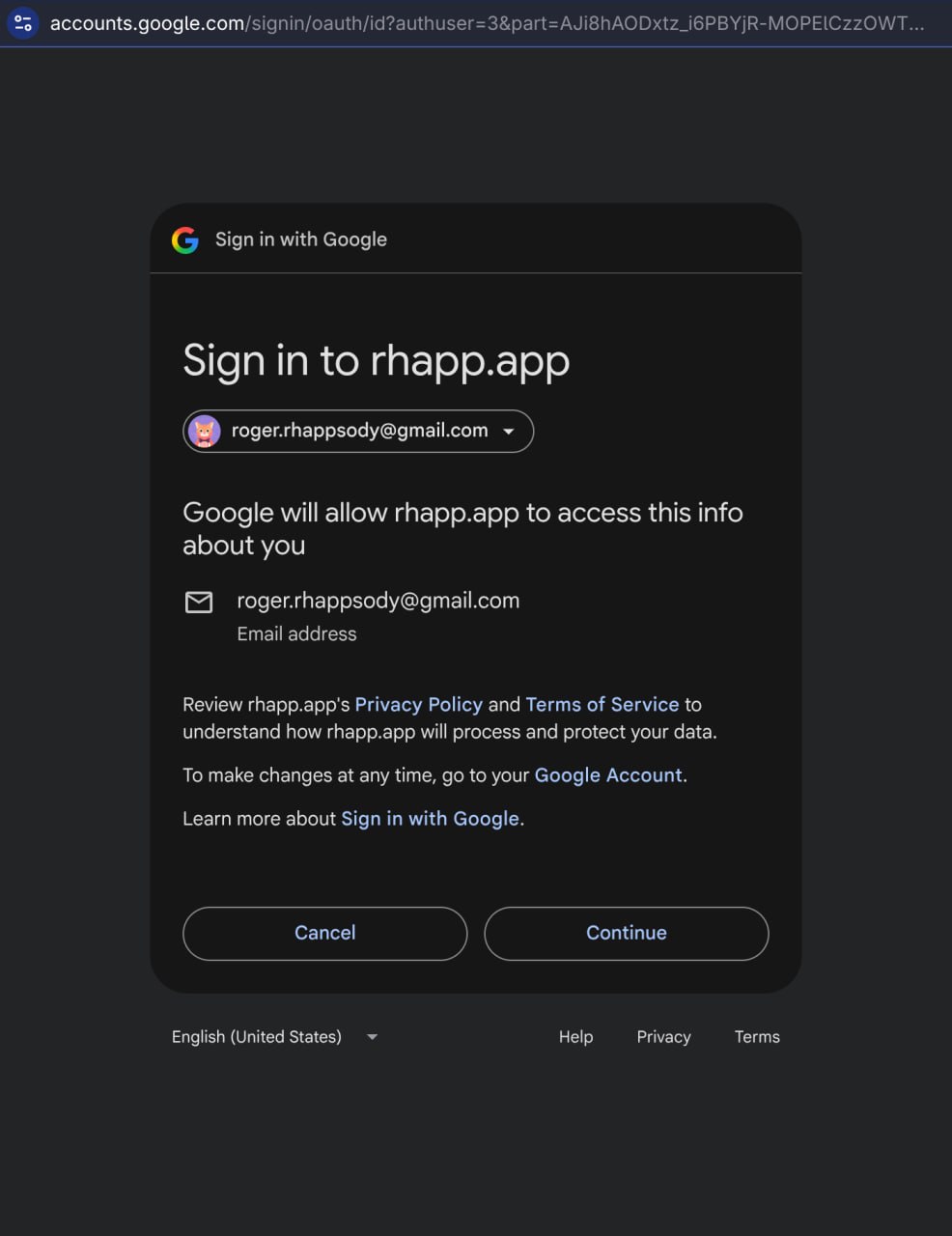
Google confirms which account you’re using and that it will share your email address with rhapp.app.
Step 2: Tick the box to share file access
Next you’ll see “rhapp.app wants access to your Google Account” with a checkbox. The checkbox text reads:
“See, edit, create, and delete only the specific Google Drive files you use with this app.”
Tick that checkbox, then tap Continue. The key phrase is “only the specific Google Drive files you use with this app” — Rhappsody can’t see or touch any other files in your Drive.
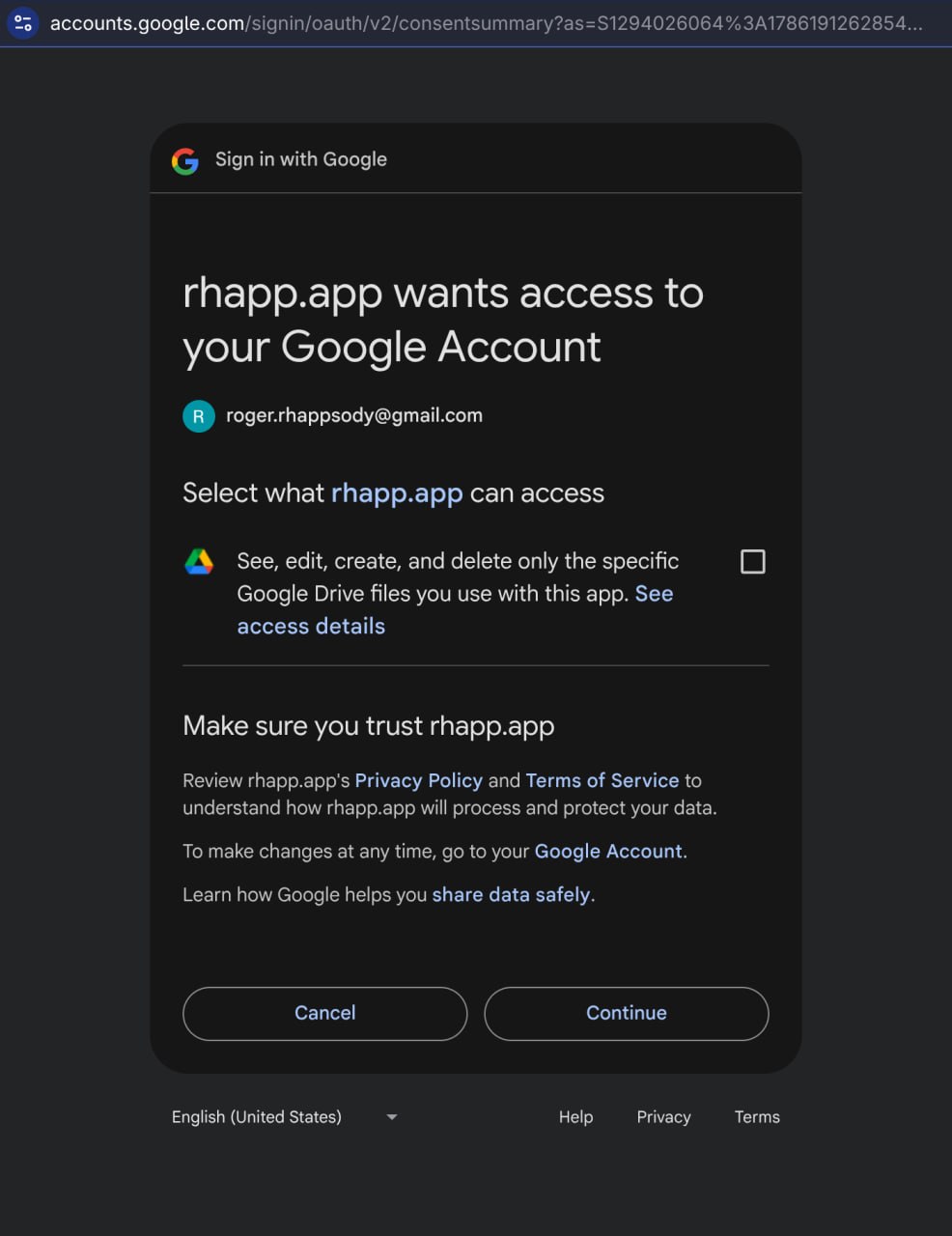
Tick the checkbox to share access to the files you use with this app.
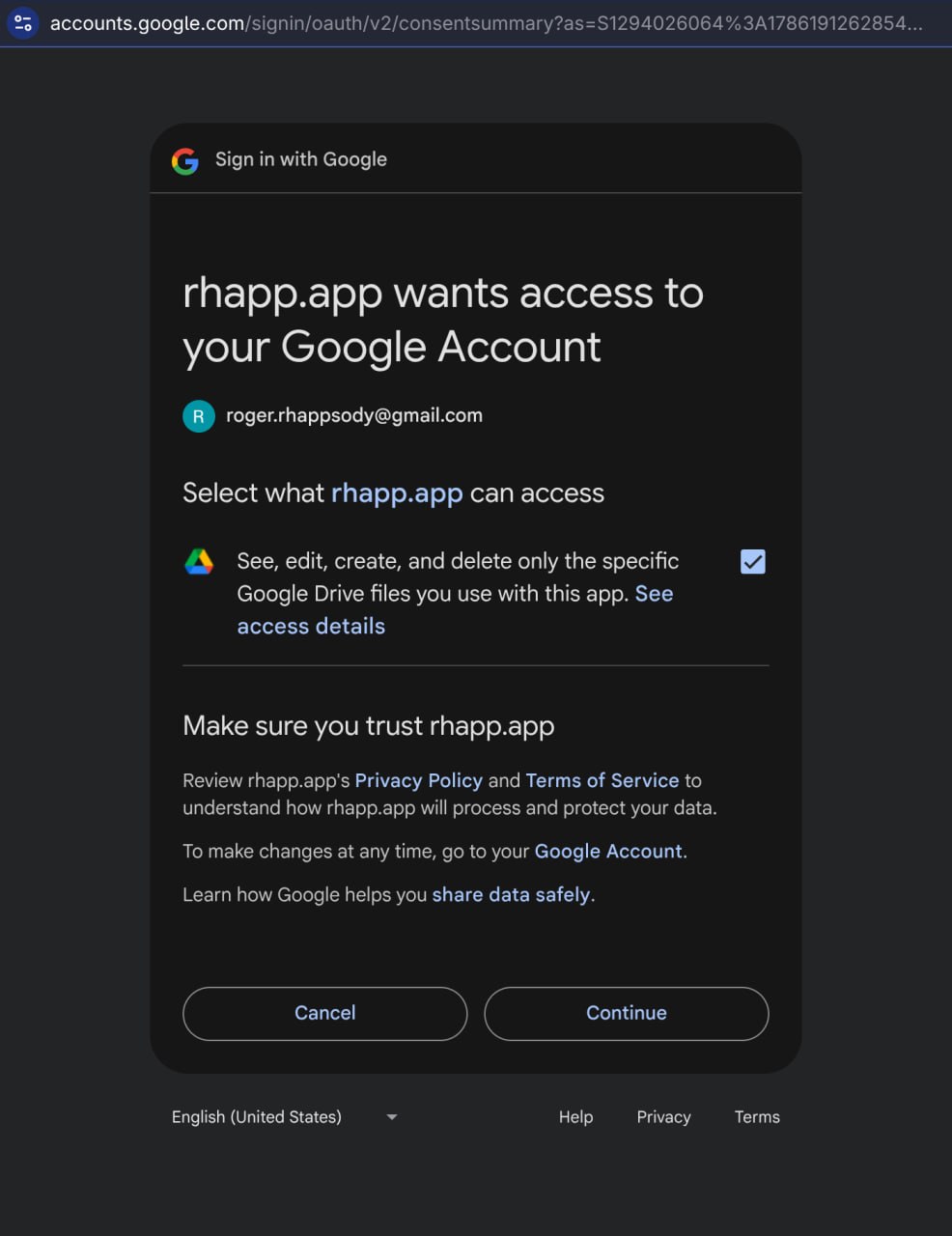
Once ticked, tap Continue to finish.
Coming back later
If you’ve connected before, Google remembers. You’ll see a shorter flow — a sign-in confirmation followed by a note that rhapp.app already has some access. Just tap Continue on each screen.
Step 1: Sign back in
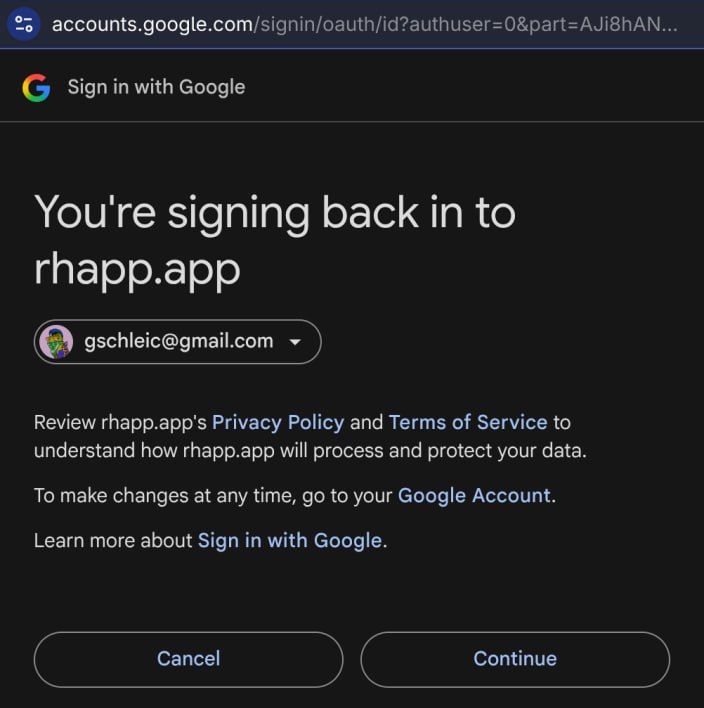
Google shows the account you’re signing back in with.
Step 2: Confirm existing access
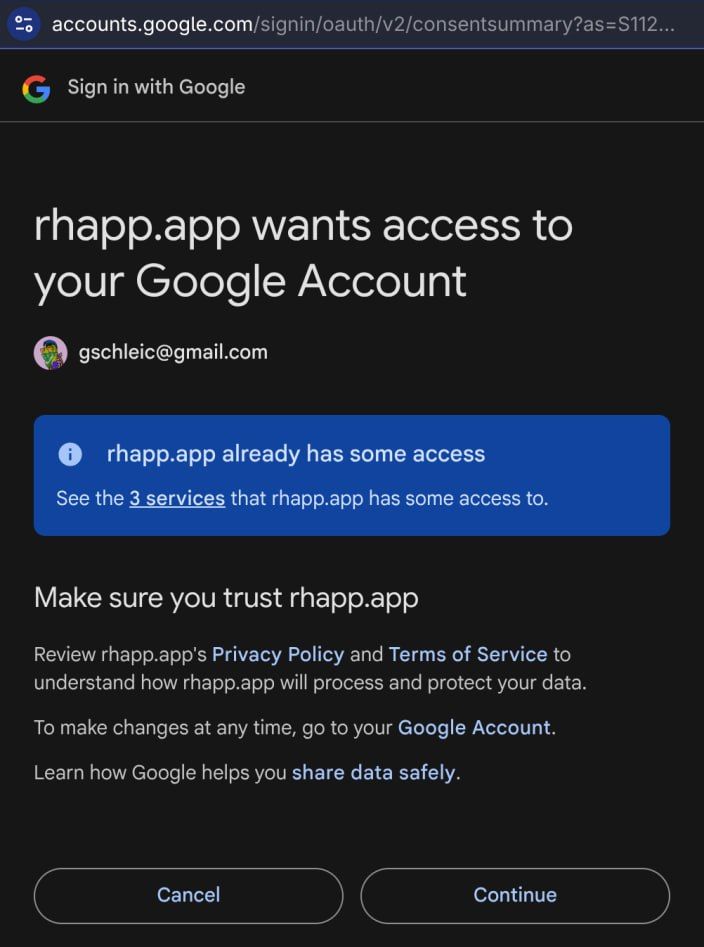
Google notes that rhapp.app already has access and asks you to confirm before proceeding.
What does Rhappsody actually get access to?
Google’s permission text says “see, edit, create, and delete” — that’s the standard wording Google uses for any app that works with Drive files. The part that actually limits the access is what comes next: “only the specific Google Drive files you use with this app.”
In practice:
- Rhappsody can only access the particular sheet (or sheets) you explicitly connect to your app — not anything else in your Drive.
- It cannot see your other Google Drive files, emails, calendar, or any other part of your Google account.
- What Rhappsody actually does with that access (read-only vs. write) depends on how the specific app is built — but it’s always limited to those connected files.
- You can revoke access at any time from your Google Account permissions page.
Common questions
Why does it say “rhapp.app” and not “Rhappsody”?
Google identifies apps by their web address. Rhappsody runs on rhapp.app, so that’s the name Google shows in the connection screens.
Why does it say “see, edit, create, and delete”? Can Rhappsody delete my spreadsheet?
That wording is Google’s standard label for the Drive file access scope — it describes the full range of what’s technically possible, not what Rhappsody will do. What the app actually does depends on how it’s built. In all cases, it can only affect the specific sheet you connect — not any other file in your Drive.
Google says “Make sure you trust rhapp.app” — should I be worried?
This is a standard reminder Google shows whenever any app requests account access — it’s not specific to Rhappsody. Google is reminding you to make sure you’re connecting to the app you intended to. If you trust the person or team who built the app, you can safely continue.
I saw a warning saying “This app isn’t verified” — should I be worried?
This warning no longer appears because Rhappsody only requests basic file access — a permission level that Google doesn’t require verification for. If you ever do see it, it simply means Google hasn’t independently audited the app, not that anything is wrong.
How do I disconnect Rhappsody from my Google account?
Go to myaccount.google.com/permissions, find rhapp.app in the list, and click Remove Access. Your data in Google Drive is not affected.